TetherReach / Knowledge / Buyer guide
LinkedIn automation software that runs on your own computer
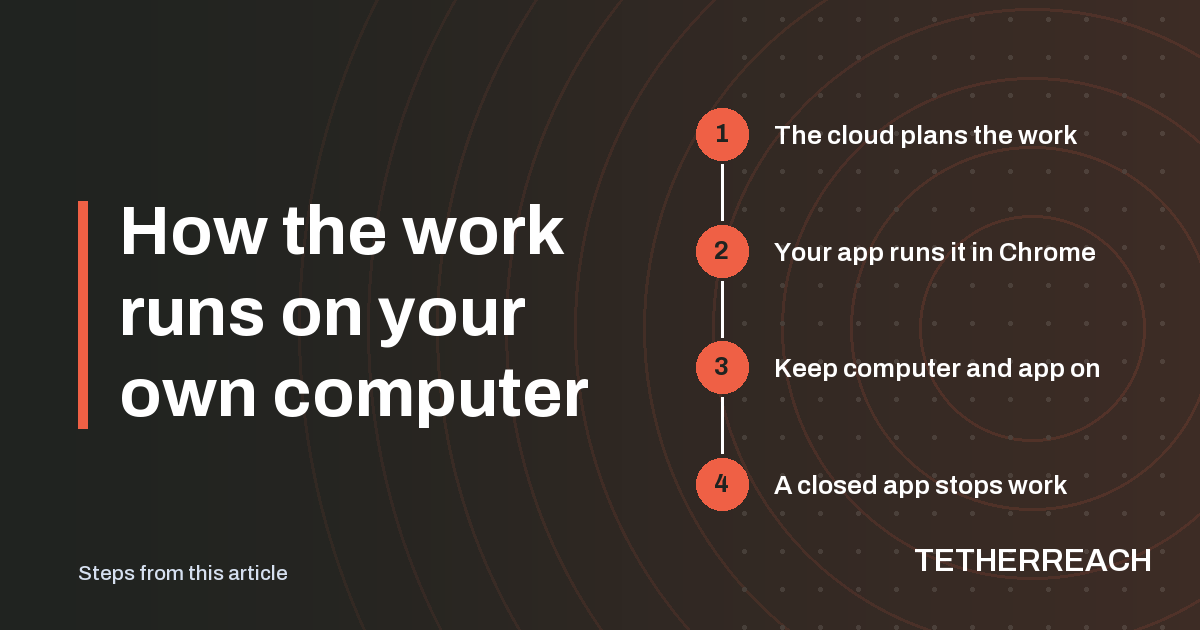
TL;DR: LinkedIn automation software like TetherReach does its LinkedIn work in a desktop app on your own computer, while the cloud account plans the campaign and keeps the results. So the computer and the app have to stay on while a campaign runs. A closed app, an expired LinkedIn sign-in, a paused campaign or a LinkedIn warning stops progress until someone acts.
What does it mean when LinkedIn automation software runs on your computer?
It means the clicks on LinkedIn happen on a machine you own, not on a remote server. TetherReach splits the job in two. Your cloud account holds the campaigns, the people you imported and the results. A desktop app you install yourself picks up the steps you approved and carries them out in Google Chrome on that machine.
There is no cloud execution and no Linux build. If the desktop app is not running somewhere, nothing gets done on LinkedIn, however many campaigns sit ready in the dashboard.
Why does the computer need to stay on?
Because the desktop app is the only part that touches LinkedIn, a running campaign needs both the computer and the app switched on. Close the laptop lid or quit the app and the campaign simply waits.
A few other things halt progress as well. The table lists each one and what you do about it.
| What stops the work | What you do |
|---|---|
| The desktop app is closed | Open the same installed app again and choose Start campaigns |
| The campaign is paused | Resume the campaign in the dashboard |
| The LinkedIn sign-in has expired | Sign in again on LinkedIn's own page from inside the app |
| LinkedIn shows a warning | Start no new work until the warning has been looked at |
| A result is unknown | An owner or administrator checks LinkedIn and records sent or not sent |
Try it yourself, no payment details
Create an account, import a small list and review your first campaign as a draft. Nothing is sent before you have checked it. Mac or Windows + Chrome; you install the desktop app yourself in fifteen minutes.
What stays on your computer, and what lives on the server?
Your LinkedIn browser profile stays on your own computer, together with the recovery evidence the app collects. Campaigns and their results are kept on the TetherReach server. You type your LinkedIn password only on LinkedIn's sign-in page, which you open from the app.
That local evidence matters when a step ends without a clear answer. Such an action is held, since it may already have reached LinkedIn, and it never gets a plain retry button. Our help pages explain how an owner or administrator settles it.
Which computers can run the desktop app?
The app is built for Macs with Apple Silicon or Intel chips on macOS 13 or later, and for 64-bit Windows 10 and 11. Google Chrome must be installed. Google's own Chrome requirements page lists macOS 13 Ventura and Windows 10 as the minimum, so those floors line up.
The Windows app has passed installation, campaign and update checks on a Windows test runner. Those checks use a local LinkedIn test page. The packages carry no paid signature, so macOS and Windows show a warning the first time you open the app.
How do reconnecting and a second LinkedIn account work?
The app keeps a separate local profile for each LinkedIn sender. Switching senders stops the current session and keeps their browser profiles separate. A colleague can pair the app on their own computer from the dashboard.
When a connection drops, reopen the same installed app with its saved account. Creating a fresh pairing or wiping the app's private data is the wrong fix, because that local data belongs to the account you already set up. If you are unsure what an account status means, the contact page reaches support.
Frequently asked questions
Can TetherReach keep sending while my laptop is closed?
No. TetherReach has no cloud execution, so every LinkedIn step runs in the desktop app on your computer. When the laptop sleeps or the app is closed, the campaign waits. Pick a machine that can stay on during the hours you want work done, and keep the app open there.
Does LinkedIn allow automation software?
No. LinkedIn's help page on automated activity says it does not allow third-party software or browser extensions that automate activity on its website, and calls this a breach of its User Agreement. Any automation tool carries that risk, TetherReach too, and TetherReach gives no promise of protection from a restriction.
Can I run the app on a Windows PC?
Yes. The app is built for 64-bit Windows 10 and 11. It has passed installation, campaign and update checks on a Windows test runner using a local LinkedIn test page. Windows also warns once on first launch.
Do I need Google Chrome?
Yes. The desktop app carries out the approved LinkedIn steps in Google Chrome, so Chrome has to be installed on the same computer. Your LinkedIn browser profile for that work stays on the computer, and you sign in yourself on LinkedIn's own page, opened from the app.
Sources
- LinkedIn Help: Automated activity on LinkedIn · www.linkedin.com/help/linkedin/answer/a1340567 · checked 8 October 2026
- Google Chrome Enterprise Help: Chrome system requirements · support.google.com/chrome/a/answer/7100626?hl=en · checked 8 October 2026
Further reading
Want more of this in your Google results? Add TetherReach as a preferred source.