TetherReach / Knowledge / Buyer guide
Workflow automation tool for LinkedIn outreach
TL;DR: A workflow automation tool for LinkedIn outreach has to act inside LinkedIn, which general tools do not. Zapier lists two LinkedIn actions and n8n one, all for posting. TetherReach runs invitations, messages after acceptance, waits and reply checks through a desktop app on your own computer, once you approve the campaign. It is in private beta, and LinkedIn does not allow tools that automate activity on its site.
Can a general workflow automation tool run LinkedIn outreach?
Not the parts that matter for outreach. Zapier's LinkedIn integration page lists two actions, Create Company Update and Create Share Update, and no triggers. The n8n documentation for its LinkedIn node lists one operation: creating a post. Neither offers a step that sends a connection invitation or a direct message.
So a general tool can publish updates for you, but the invitation and follow-up work happens inside LinkedIn itself. That needs software working in a signed-in LinkedIn session. LinkedIn's help page on automated activity says it does not allow third-party software or browser extensions that automate activity on the site, and calls their use a violation of its User Agreement. Any LinkedIn workflow tool carries that risk, TetherReach included.
What does a LinkedIn workflow look like in TetherReach?
A TetherReach campaign is built from four supported step types. Each person on your list moves through them in order.
The list comes from you. Under My network you import a CSV where every row has a linkedin_url column, with optional columns for name, company, position and language. Filters, tags and stages help you sort those records. Write the invitation and message text first, then add people, so you have read what each person will see. Our LinkedIn invitation guide covers how to write that first note.
Older campaigns may still show advanced actions. They are labelled experimental and are outside what TetherReach supports today.
| Workflow step | What happens | Who controls it |
|---|---|---|
| Invitation | A connection request goes to a person from your imported list | You choose the people and write the note |
| Message after acceptance | A message goes to someone who accepted your invitation | You write and read the text before adding people |
| Wait | The campaign holds off on the next step for that person | It is part of the campaign you approve |
| Reply check | The app looks for a reply from that person | The recipient decides whether to answer |
Try it yourself, no payment details
Create an account, import a small list and review your first campaign as a draft. Nothing is sent before you have checked it. Mac or Windows + Chrome; you install the desktop app yourself in fifteen minutes.
Who starts the workflow, and where does it run?
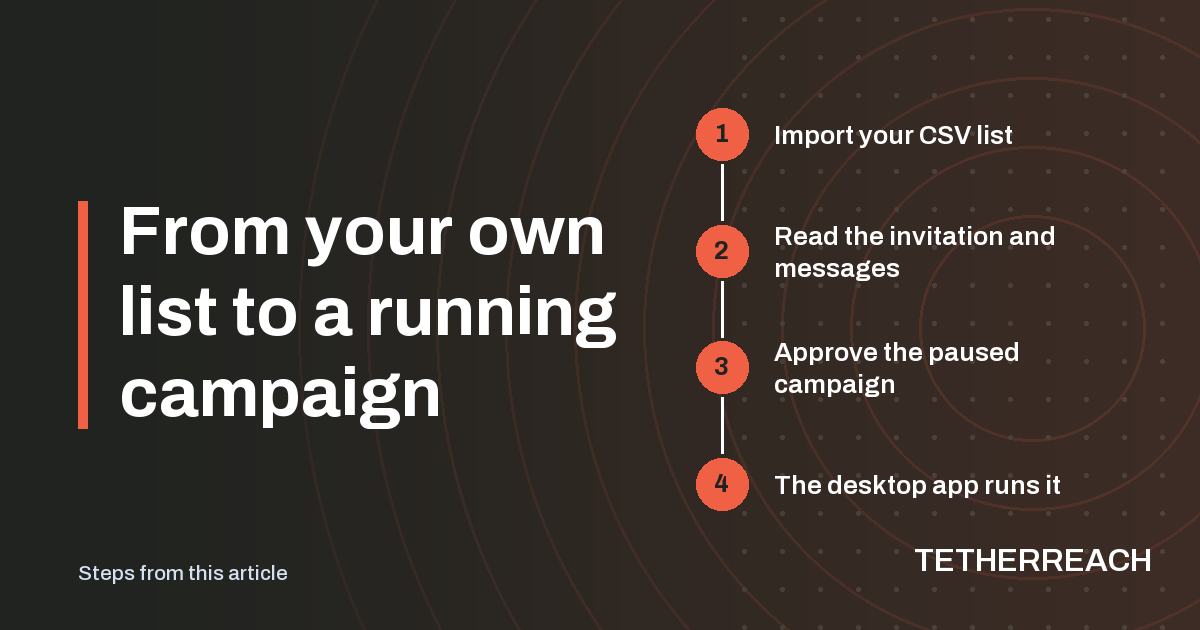
Nothing runs until you say so. A new campaign stays paused until a workspace owner approves it for real outreach in the dashboard. After that, you allow the desktop app to run approved campaigns and press Start campaigns in the app.
The work itself happens on your own computer. The cloud account coordinates the campaign and stores results, while the desktop app carries out the steps in Google Chrome. The computer and the app need to stay on while a campaign runs. One installation serves one LinkedIn account, so a second sender needs a second installation with its own pairing code. You sign in on LinkedIn's own page, and the browser profile stays on your machine.
On a Mac the app needs macOS 13 or newer and is built for both Intel and Apple Silicon chips. It is also built for Windows 10 and 11, 64-bit. The Windows build has so far been tested on a Mac only and has never run on a real Windows PC.
What happens when a step has an unclear result?
TetherReach holds that step instead of repeating it. A result nobody can confirm may already have reached LinkedIn, so unknown work has no plain retry button.
An owner or administrator opens the person in the campaign's failed-work view and compares the approved text with what LinkedIn really shows. They record what they saw and when, then mark the step sent or not sent. Marking it not sent makes the step eligible for another attempt. The help pages explain what to do when a campaign stops.
How far is TetherReach tested today?
TetherReach is in private beta, and the proof so far comes from test runs. The latest full repeat covered 547 automated cases: 546 passed, none failed, and the one skipped native-package check passed on its own afterwards. Four mock end-to-end journeys also passed, with reply handling working in tests against simulated pages.
Those runs are not proof of a real send. Live, TetherReach is designed to carry a person from invitation through to reply, and that whole route is still waiting for independent confirmation. Check your first live campaign yourself. Payments are switched off for now and prices are still proposals. The product page shows the current offer.
Frequently asked questions
Can I connect TetherReach to Zapier or n8n?
TetherReach's product documentation describes no Zapier or n8n connection. Campaigns and their results are stored on TetherReach's server and managed in the dashboard, and the desktop app carries out the LinkedIn steps. Broader CRM and AI actions are still experimental and are left out of the first test offering, so plan your workflow around the dashboard for now.
Does the workflow keep running when my laptop is closed?
No. TetherReach has no cloud execution, so the LinkedIn steps only happen while your computer is on and the desktop app is open. A closed app, a paused campaign, an expired LinkedIn sign-in or a LinkedIn warning can each stop progress. When a warning appears, start no new work until it has been checked.
Can a team share one TetherReach workflow?
Yes, inside one workspace with roles. Owners handle settings and billing, owners and administrators manage members and review unclear sends, members manage campaigns and profiles, and viewers can only read. Each LinkedIn sender still needs its own desktop installation and pairing code, because one installation is tied to one LinkedIn account.
Sources
- Zapier: LinkedIn integrations · zapier.com/apps/linkedin/integrations · checked 15 October 2026
- n8n Docs: LinkedIn node · docs.n8n.io/integrations/builtin/app-nodes/n8n-nodes-base.linkedin/ · checked 15 October 2026
- LinkedIn Help: Automated activity on LinkedIn · www.linkedin.com/help/linkedin/answer/a1340567 · checked 15 October 2026
Further reading
Want more of this in your Google results? Add TetherReach as a preferred source.