TetherReach / Knowledge / Buyer guide
LinkedIn outreach tool: what to check before you choose one
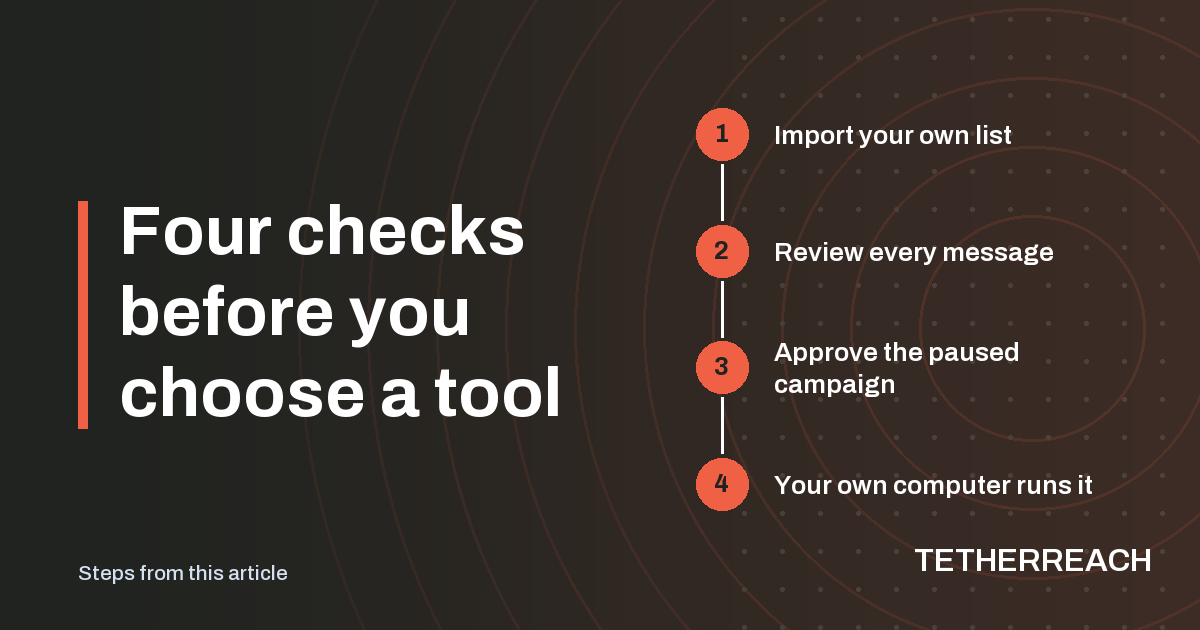
TL;DR: A LinkedIn outreach tool is worth choosing when you stay in charge of who gets contacted and what they read. Ask where the tool runs, who approves a campaign and what happens after a warning or an unclear result. TetherReach runs approved campaigns through a desktop app on your own computer. It is in private beta, and no tool can promise that LinkedIn leaves your account alone.
What should a LinkedIn outreach tool let you decide?
A good LinkedIn outreach tool leaves the important decisions with you: who hears from you, what they read and when the work happens. Anything a tool decides on its own is something you end up checking afterwards.
In TetherReach the list comes from you. You import a CSV file with a linkedin_url column, and you can add name, company, position and language as extra columns. You write the invitation and the messages that come after it, then read them before anyone joins the campaign. A new campaign sits paused until someone approves it for real outreach in the dashboard. The LinkedIn invitation guide shows how to write that first note.
Where does the tool actually run?
TetherReach does its LinkedIn work on your own computer. The cloud account coordinates the work and keeps the records. A desktop app that you install yourself carries out the approved steps in Google Chrome on that computer.
That choice has practical effects. The computer and the app have to stay on while a campaign runs. Every LinkedIn account you send from needs a separate installation, paired with a code of its own, so two senders means two installs. Your LinkedIn browser profile stays on your computer, and you type your password only on LinkedIn's own sign-in page.
The app is built for Macs with Apple Silicon or Intel chips on macOS 13 or later, and built for 64-bit Windows 10 and 11. The Windows build is built to run there, but so far it has only been built and tested on a Mac; nobody has started it on a real Windows PC yet. The packages carry no paid signature, so your system shows a warning the first time you open the app.
Try it yourself, no payment details
Create an account, import a small list and review your first campaign as a draft. Nothing is sent before you have checked it. Mac or Windows + Chrome; you install the desktop app yourself in fifteen minutes.
What happens when the work stops?
Ask any vendor how its tool behaves after a pause, a warning or an unclear result. In TetherReach, progress can halt because a campaign is paused, the app is closed, a LinkedIn sign-in has expired or LinkedIn shows a warning. When a warning appears, start no new work until it has been looked at.
An action with an unknown result is held, since it may have reached LinkedIn already. That kind of work has no plain button to try it once more. An owner or administrator compares the approved text with what really happened on LinkedIn and records sent or not sent. The help pages walk through that review.
A checklist to put to any LinkedIn outreach tool
Take these questions into a demo or a trial. The right column shows what TetherReach does today, based on its own product documentation.
| Question to ask | TetherReach today |
|---|---|
| Who picks the people? | You do, from a CSV with a LinkedIn profile address on each row |
| Can I read every message first? | Yes, you review the invitation and message text before adding people |
| Does a campaign start by itself? | A new campaign stays paused until it is approved for real outreach in the dashboard |
| Where do the actions happen? | In the desktop app on your own computer, using Google Chrome |
| How many LinkedIn accounts per installation? | One; a second account needs its own installation and pairing code |
| Who settles an unclear result? | An owner or administrator, who records sent or not sent |
| Which steps are supported? | Invitations, messages after acceptance, waits and reply checks |
| Can it prevent a LinkedIn restriction? | No; TetherReach gives no protection promise |
Does LinkedIn allow outreach tools?
LinkedIn does not allow tools that automate activity on its website. According to LinkedIn's help page on automated activity, third-party software and browser extensions that automate activity on its website are not permitted, and using them breaks the User Agreement. The User Agreement itself rules out bots and other unauthorized automated methods for sending messages or adding contacts.
Every outreach tool you pick sits inside that risk, TetherReach included. TetherReach makes no promise of protection from a restriction, and LinkedIn can also change its pages. Read both LinkedIn pages, listed under sources, and decide whether the risk fits your account.
Where TetherReach stands today
TetherReach is in private beta. In test runs against simulated pages, a fixture recorded invitations, messages and a reply, and reply handling passed; outside those tests, a complete live journey from message to reply still awaits independent confirmation. Check your first live campaign yourself.
Payments are switched off for now and prices are still proposals. Broader AI and CRM actions stay experimental and sit outside the first test offering. Questions about your own setup can go through the contact page.
Frequently asked questions
Does TetherReach need my LinkedIn password?
No. You sign in yourself on LinkedIn's own sign-in page, which you open from the desktop app, and the password is typed nowhere else. The LinkedIn browser profile the app works with stays on your own computer, while campaigns and their results are stored on the TetherReach server.
Can I use the desktop app on Windows?
The Windows app shares its source with the Mac app and is built for 64-bit Windows 10 and 11. It has only been built and tested on a Mac, never started on Windows, so treat the Windows download as early software. Windows also shows a one-time warning on first launch, because the package has no paid signature.
Can one installation send from two LinkedIn accounts?
No. Every LinkedIn account is attached to its own installation, paired with its own code from the dashboard, so a team with two senders sets up the app twice. To reconnect an account you already use, open the same installed app instead of pairing it fresh or wiping its private data.
Sources
- LinkedIn Help: Automated activity on LinkedIn · www.linkedin.com/help/linkedin/answer/a1340567 · checked 1 October 2026
- LinkedIn User Agreement · www.linkedin.com/legal/user-agreement · checked 1 October 2026
Further reading
Want more of this in your Google results? Add TetherReach as a preferred source.