TetherReach / Knowledge / Installation
Installing the TetherReach desktop app on Mac or Windows
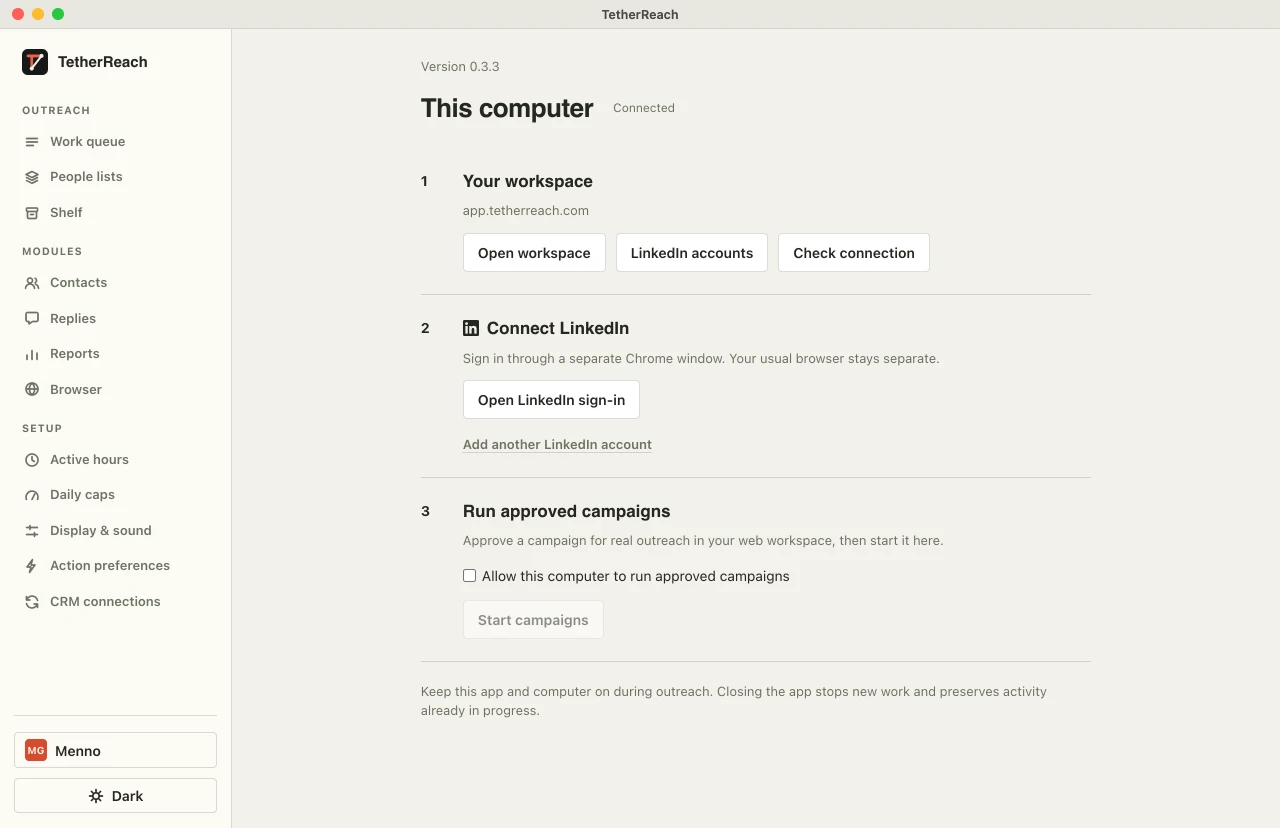
TL;DR: Download TetherReach from your account and install it on your Mac or Windows PC. Sign in to the app, then sign in to LinkedIn in its separate Chrome profile. Review and approve your campaign before starting it. Keep the connected computer running while a campaign executes and check the linked instructions before approval.
1. What do you need to install TetherReach?
- A Mac (macOS 13 or later) or a Windows PC (Windows 10 or 11, 64-bit).
- Google Chrome installed. The app opens LinkedIn in its own Chrome profile; your everyday browser is left alone.
- A TetherReach account (free trial) and your LinkedIn login.
macOS and Windows show a one-time prompt on first launch. Below is exactly which button to choose.
2. Why a desktop app and not a Chrome extension
Many LinkedIn tools are Chrome extensions. They run in your everyday browser, next to your other tabs, and work inside the LinkedIn page itself: they read it and add buttons or scripts to it. LinkedIn’s user agreement names browser plugins and add-ons explicitly, next to other automated methods.
TetherReach is a desktop app, so it works differently:
- The app drives an ordinary, unmodified Google Chrome in its own profile, separate from your everyday browser.
- No extension is ever loaded into that profile. If the check still finds an active extension, TetherReach marks the account as blocked and nothing runs.
- The app adds nothing to LinkedIn pages and runs no code in your everyday browser.
- You sign in to LinkedIn yourself; your password never reaches TetherReach.
- Steps run only for campaigns you approved, within your limits and working hours.
That lowers the risk but does not remove it: a desktop app is automation too, and LinkedIn can always restrict an account.
Try it yourself, no payment details
Create an account, import a small list and review your first campaign as a draft. Nothing is sent before you have checked it. Mac or Windows + Chrome; you install the desktop app yourself in fifteen minutes.
3. Where do you download TetherReach?
Create an account and log in. Your account page shows one download button for your computer: a .dmg for the Mac, a Setup program for Windows. As soon as the download starts, it shows the steps below with screenshots.
4. Installing on a Mac
- Open the downloaded file and drag TetherReach to Applications.
- Open TetherReach. macOS says Apple could not verify the app is free of malware and offers only Move to Trash and Done. Choose Done.
- Open System Settings, Privacy & Security, scroll to Security and choose Open Anyway next to TetherReach.
- In the prompt that follows choose Open Anyway and confirm with your Mac password.
- The app starts. From then on it opens normally from Applications or the Dock.
5. Installing on Windows
- Open the downloaded Setup program.
- Windows SmartScreen says “Windows protected your PC”. Click More info, then Run anyway.
- TetherReach installs, adds a shortcut to the Start menu and your desktop, and opens.
Your sign-in lives in your own user folder (AppData\Local\TetherReach), apart from the program; an update or reinstall leaves it in place.
If something goes wrong, email hello@tetherreach.com with a screenshot.
6. Signing in to the app
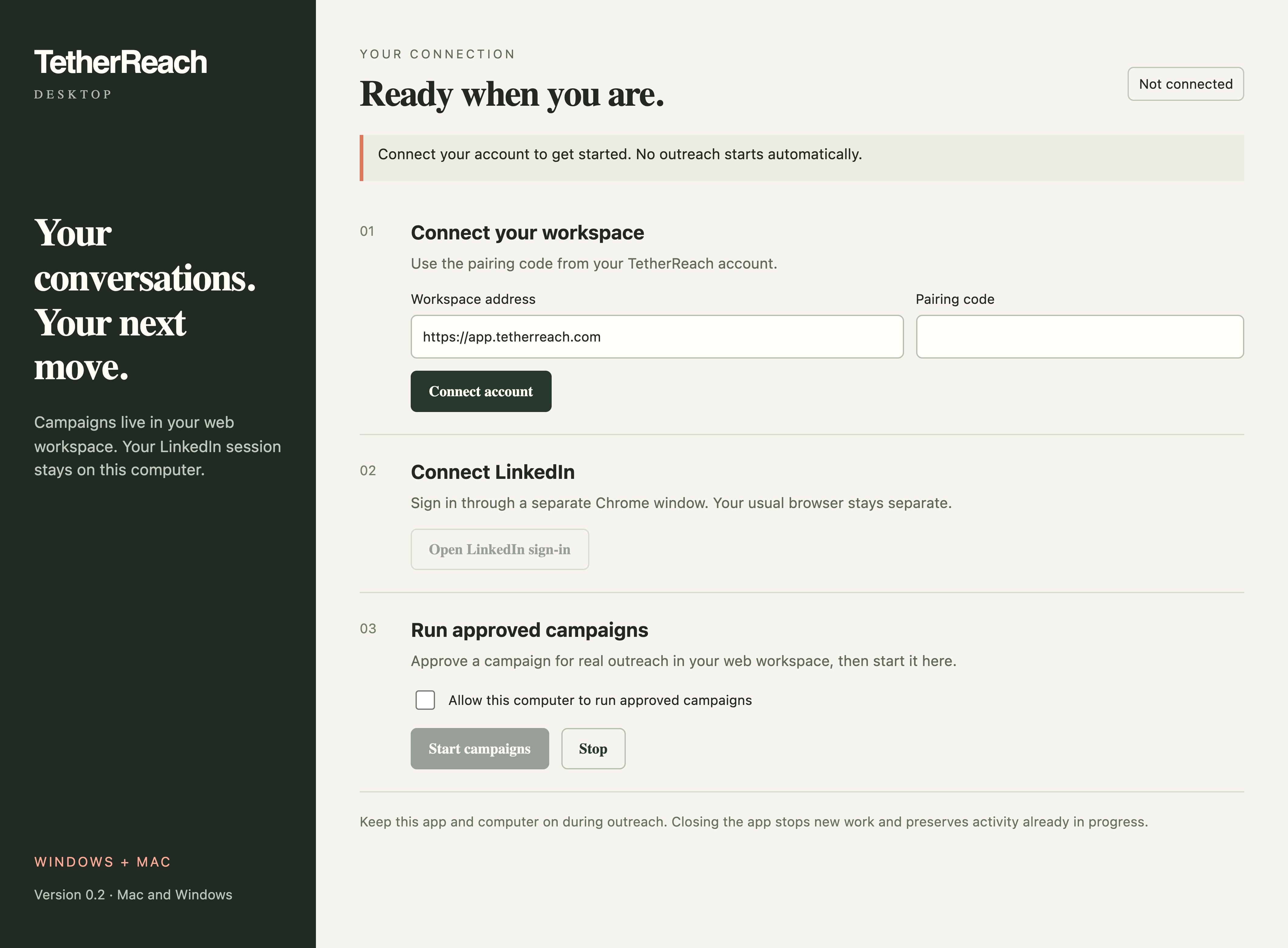
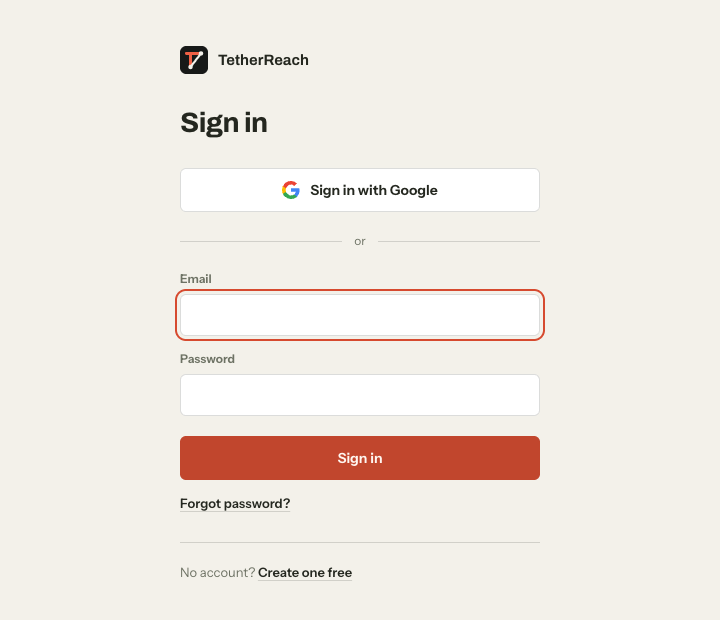
- Open TetherReach and sign in with your TetherReach account: with Google or with email and password.
- The app opens your workspace.
The app keeps you signed in. A second computer or a second LinkedIn account needs its own installation.
7. Signing in to LinkedIn
In the app choose Open LinkedIn sign-in. A separate Chrome window opens with LinkedIn's login page. Sign in there yourself, with your own details and any two-step verification. Check that you see your own profile, then click Stop in the app. TetherReach never sees your password; the session stays in that separate Chrome profile on your computer.
8. Approving and starting your first campaign
- Build your campaign in your workspace and review every variant of every message.
- In the desktop app tick “Allow this computer to run approved campaigns”.
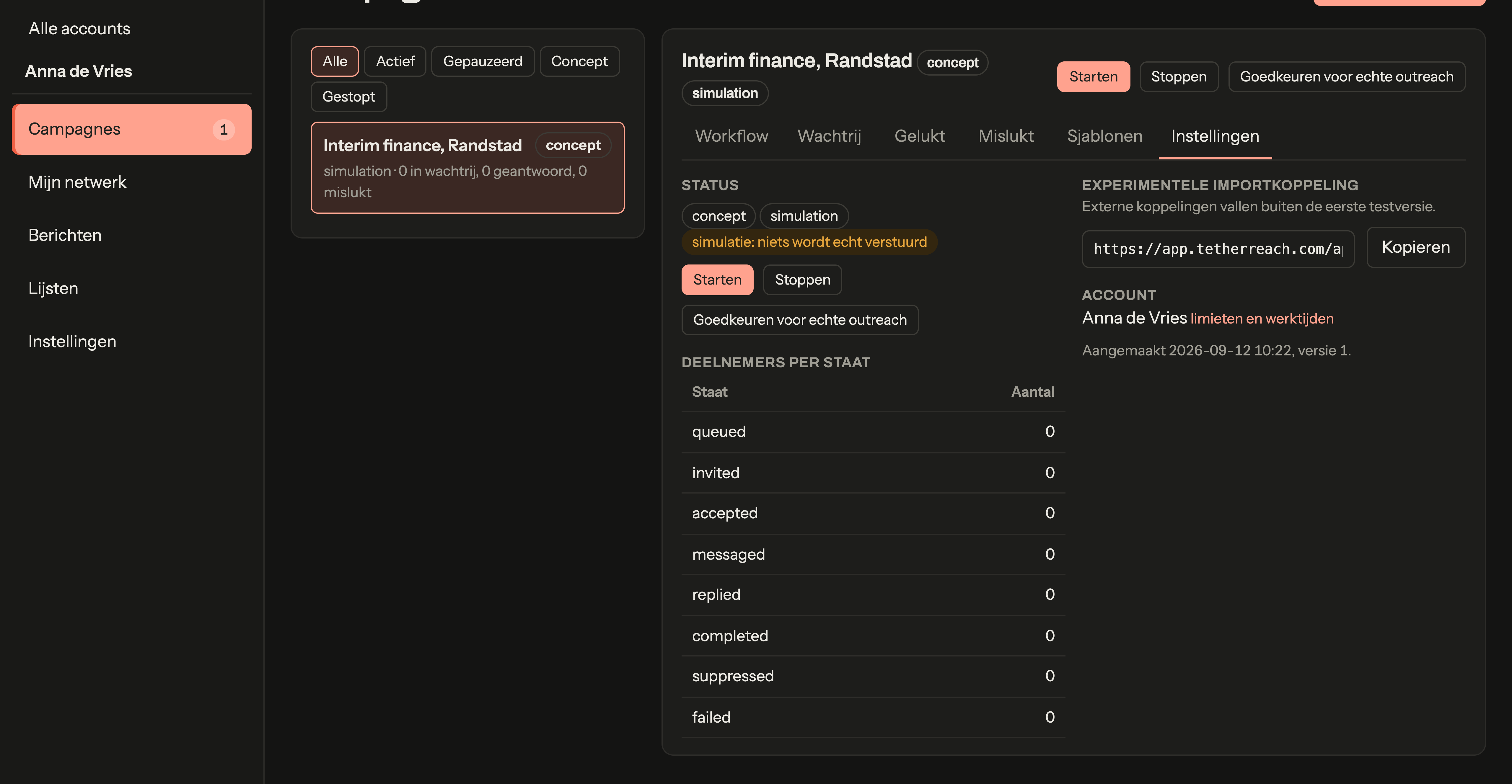
- In the workspace open the campaign, Instellingen (settings) tab, and choose Goedkeuren voor echte outreach (approve for real outreach). You see a checklist; confirm only when you have read everything.
- Choose Starten (start). In the desktop app choose Start campaigns.
From that moment the app sends invitations and messages in your name, within your account's limits and working hours. Any change to the sequence withdraws the approval; approve again afterwards.
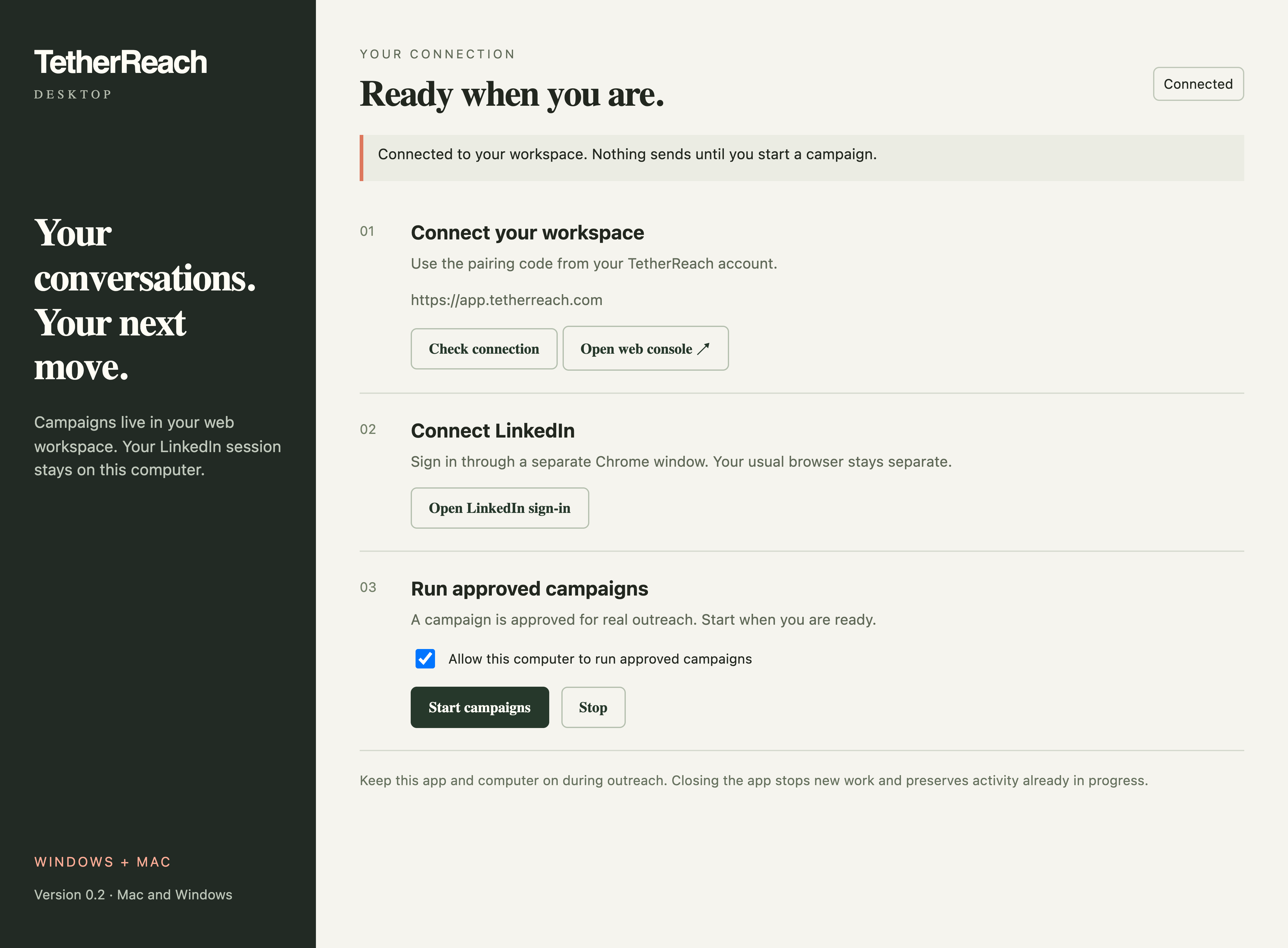
9. What the app looks like once everything is ready
Once you are signed in to the app and to LinkedIn and a campaign is approved, the window looks like this. You set the app to work with Start campaigns and halt it with Stop.
10. Stopping, closing and problems
- Stop in the app stops new work immediately; a step already in progress finishes cleanly and is saved.
- Closing the app or shutting down the computer pauses the work; it continues on the next start.
- If your LinkedIn session expires, the app tells you and you choose Open LinkedIn sign-in again.
- A step with an unknown outcome stays on hold in the workspace until you have checked it; nothing is ever blindly resent.
- Do not delete the data folder (Application Support/Outreach Companion on the Mac, AppData\Local\TetherReach on Windows) to fix a problem; you would lose your sign-in and your LinkedIn session. Email hello@tetherreach.com instead.
Review LinkedIn daily limits and working hours before allowing the campaign to run.
Ready for the first run?
- The app is on my computer and opens without a prompt.
- I am signed in to the app and see my workspace.
- I am signed in to LinkedIn in the separate Chrome window and see my own profile.
- The Allow this computer box is ticked.
- My campaign is approved for real outreach and started.
Frequently asked questions
Why the prompt from macOS or Windows?
The warning concerns the app’s signature. TetherReach’s current packages are unsigned, so macOS or Windows may ask you to confirm opening them. Follow the instructions for your operating system and check that the download came from your TetherReach account. The warning does not describe the campaign you prepared.
Does my computer have to stay on?
Yes, while a campaign runs. The desktop app carries out the LinkedIn steps on your computer, so keep the computer and app running. Closing the app or turning off the computer stops that execution. Check the account, connection and campaign state when you return before expecting further steps.
Can I install the app on two computers?
Yes, but each desktop installation belongs to one LinkedIn account. Use the connected computer for that account and keep its sign-in clear. Two computers running the same account at the same time is not the intended workflow. Agree which person manages each installation before preparing a team campaign.
Does it work with Safari, Edge or Firefox?
No. The desktop app needs Google Chrome and opens a separate Chrome profile for its LinkedIn work. Installing another browser does not replace that requirement. Install Chrome before connecting the app, then sign in to LinkedIn yourself in the window opened for the account you intend to use.
The web workspace is in Dutch; the Dutch button labels are given alongside the English ones.
Sources
- Apple Support, open a Mac app from an unidentified developer · support.apple.com/guide/mac-help/mh40616/mac · checked 12 September 2026
- TetherReach, desktop bridge and build script (agent/companion.mjs, scripts/build-desktop.py) · checked 12 September 2026
- Google Chrome Help, Download and install Google Chrome · support.google.com/chrome/answer/95346?hl=en&co=GENIE.Platform%3DDesktop · checked 15 October 2026
Further reading
Want more of this in your Google results? Add TetherReach as a preferred source.