TetherReach / Knowledge / Guide
LinkedIn lead generation: choosing whom to contact
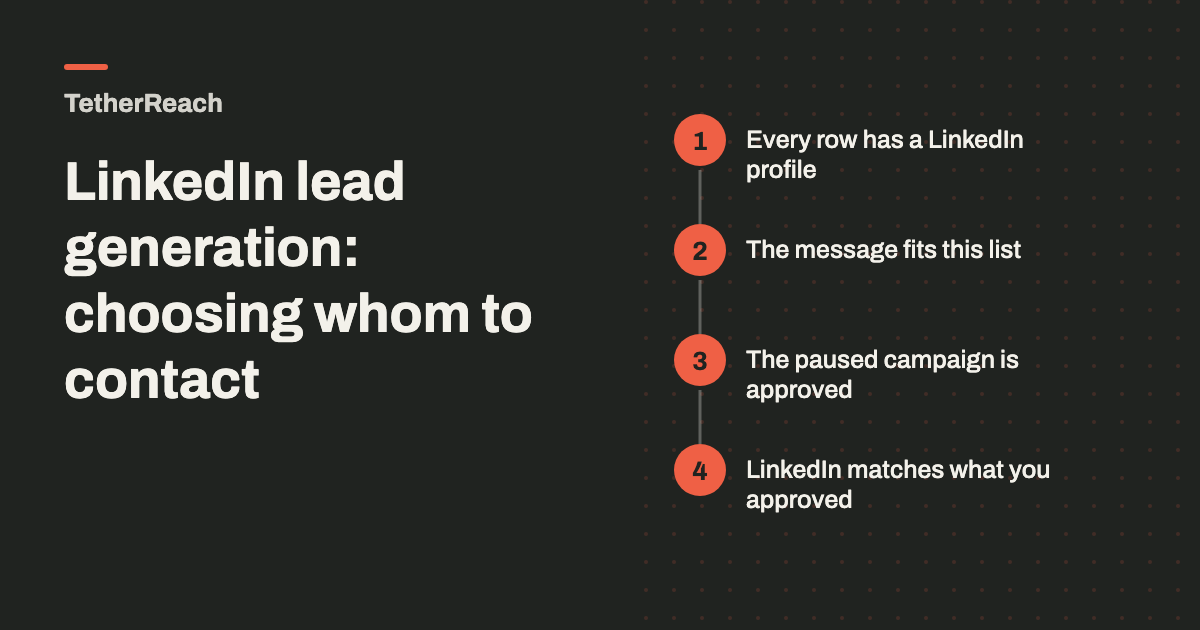
TL;DR: LinkedIn lead generation in TetherReach starts from people you picked yourself. The documented way in is a CSV import where each row holds a LinkedIn profile address. You then read the invitation and message text, and the paused campaign is approved for real outreach in the dashboard before the desktop app acts. This page explains how to choose and check those people first.
Where LinkedIn lead generation starts in TetherReach
LinkedIn lead generation in TetherReach begins with a list you put together yourself. You bring the people in through a CSV file under My network, and every row needs a column called linkedin_url.
Once they are in, you prepare the invitation and the messages that come after it, and read that text yourself. You review the whole campaign before anything runs on LinkedIn. Picking who ends up on that list is left to you, so it deserves the most attention.
Who belongs on your list
A good row is a person you can explain in one sentence. Why should this person hear from you now? If you cannot answer that, an invitation to them will read as if it was written for anyone.
The import also accepts optional columns that are useful to include: full name, company, job title and language. They help you judge each person and keep track of who they are. A row with only a profile address tells you very little. Decide whether you know enough about someone before you add them, and leave them out when you do not.
Try it yourself, no payment details
Create an account, import a small list and review your first campaign as a draft. Nothing is sent before you have checked it. Mac or Windows + Chrome; you install the desktop app yourself in fifteen minutes.
Four checks around your first campaign
Each check belongs to a fixed moment, and the table puts them in order. Someone with the viewer role can read records but cannot change them or start work. Give the list work to a member, an administrator or the owner.
If a role question is unclear, the help pages cover what each role may do.
| Moment | What you check | Who does it |
|---|---|---|
| Before the import | Every row has a LinkedIn profile address; optional columns are filled where you know them | Whoever prepares the list |
| Before people join a campaign | The invitation and message text reads correctly for the people on this list | A member, administrator or owner |
| Before real outreach | The paused campaign is approved for real outreach in the dashboard | Someone allowed to approve, such as the workspace owner |
| After the first live steps | What happened on LinkedIn matches the text you approved | You, on your own LinkedIn account |
What happens to the people you chose
A new campaign offers a short set of steps: the invitation, a message once someone accepts, waiting periods and reply checks. Filters, tags and stages help you sort the records. Older campaigns can still show advanced actions, which are marked experimental.
The work runs through the desktop app on your own computer, so that computer and the app have to stay on. Each LinkedIn account needs its own installation with its own pairing code. A team with two senders therefore sets up two installations. The product overview shows how the account and the app fit together.
Limits to weigh before you start
LinkedIn is able to restrict accounts and to change how its pages work. TetherReach offers no guarantee against such a restriction. Read LinkedIn's own help page on automated activity, listed under sources, before you start. When LinkedIn shows a warning, stop new work until it has been checked.
TetherReach is still in private beta. Its desktop app targets Macs with Apple Silicon or Intel chips plus 64-bit Windows 10 and 11, and Google Chrome is required. The Windows version has only been tested on a Mac so far. Reply handling passed in tests against local stand-in pages; a complete live journey from message to reply still awaits independent confirmation. Broader AI and CRM actions are experimental and sit outside the first test offering. Questions about your own case can go through the contact page.
Frequently asked questions
Does TetherReach find LinkedIn leads for me?
No, finding people is not part of the documented workflow. You prepare the list yourself and import it as a CSV under My network, with a LinkedIn profile address in each row. In TetherReach you then prepare the invitation and later messages and read them before anything runs. Broader AI, CRM and other LinkedIn actions are experimental and outside the first test offering.
Which columns does the CSV import need?
Only linkedin_url is required, holding the profile address of each person. Optional columns worth adding are the full name, company, job title and language. They help you judge whether each person belongs on the list and keep track of them later. A row with only a profile address tells you little about who you are contacting.
Can a teammate prepare the list without starting outreach?
Yes. Members can manage campaigns and profiles, so a teammate with that role can build and check the list. Approving the paused campaign for real outreach is a separate step in the dashboard, one the workspace owner can take. A viewer can read the records but cannot change them or start work.
Can I use more than one LinkedIn account?
Yes, but each LinkedIn account needs its own installation of the desktop app with its own pairing code. You attach one account to one installation. To reconnect later, use that same installed app and its saved account instead of creating a new pairing or deleting its private data.
Sources
- LinkedIn Help: Automated activity on LinkedIn · www.linkedin.com/help/linkedin/answer/a1340567 · checked 23 September 2026
Further reading
Want more of this in your Google results? Add TetherReach as a preferred source.