TetherReach / Knowledge / Getting started
Preparing and reviewing your first TetherReach campaign
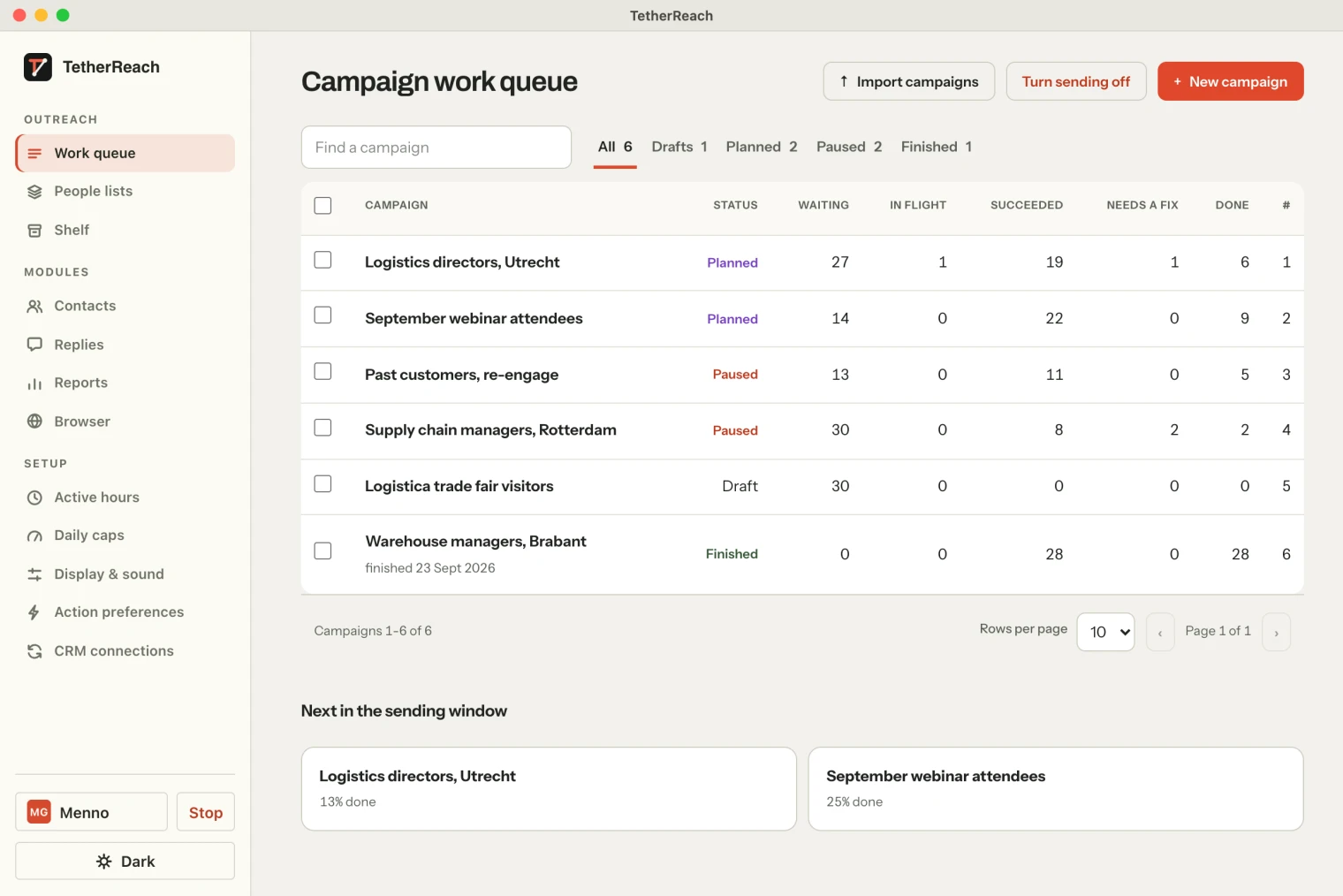
TL;DR: Start by importing a CSV of the people you want to contact. Write your invitation and follow-up, then review the campaign as a draft. Your desktop app runs the steps after you approve the campaign. Keep the connected computer running while a campaign executes and check the linked instructions before approval.
1. What you need before you start
A TetherReach account works right after registration and email confirmation. Carrying out steps on LinkedIn needs more, and that comes first on purpose:
- A Mac (Apple Silicon or Intel, macOS 13 or later) or a Windows PC (10 or 11) with Google Chrome. There is no cloud execution.
- The TetherReach desktop app. You download it yourself and install it in fifteen minutes with the installation guide; macOS and Windows ask for a one-time confirmation on first launch.
- Your own LinkedIn login. You sign in yourself, in a separate Chrome profile on your computer. TetherReach never asks for your LinkedIn password.
- A list of people you want to approach, as a CSV. A list of companies is not a list of people; TetherReach does not look up profiles from email addresses.
The 14-day trial starts when you create your account, not at installation. Until the desktop app is paired and the first campaign is approved, your account sends nothing. So do the installation in the first days.
A campaign can only carry out real steps after the workspace owner has approved it for real outreach in the campaign settings, after a checklist. Any change to the sequence withdraws that approval. That is a deliberate brake, not a forgotten feature.
2. How do you import a contact list?
Go to My network and choose Import (CSV). The only required column is linkedin_url. Everything else you include becomes a variable for your messages:
- full_name, company, position, location, headline and email.
- language (nl or en) decides which template someone gets when you fill in two languages per step.
- tags, separated by a semicolon, and stage for your own organisation.
- Custom columns with the cs_ prefix, for example cs_branche. You use them in a message as
{cs_branche}.
After importing, check the people without a company or position. Not to remove them, but because your template has to account for them; how that works is in the explanation of variables and missing fields.
| Column | Required | As a variable |
|---|---|---|
| linkedin_url | Yes | Not as text; this is the person's key |
| full_name | No | {firstName} {lastName} {fullName} |
| company, position, location, headline | No | {company} {position} {location} {headline} |
| language | No | Picks the Dutch or English template per step |
| cs_branche (custom column) | No | {cs_branche} |
Try it yourself, no payment details
Create an account, import a small list and review your first campaign as a draft. Nothing is sent before you have checked it. Mac or Windows + Chrome; you install the desktop app yourself in fifteen minutes.
3. Building the sequence: four steps are enough
Under Campaigns, create a new campaign and attach the LinkedIn account. For new campaigns the first release offers these steps: invitation with note, message after acceptance, wait, reply check, and the organising steps filter, tag and stage. More exists in the code, but that is experimental and not sold.
A sequence that proves itself in the FlintLead pilot looks like this:
- Invitation with a short note (200 characters at most).
- Message after acceptance, with a wait of 2 working days.
- Reply check, 7 days.
- Follow-up, only if no reply came.
Every message step has a wait in days or working days. That wait counts from the previous step for that same person, not from the start of the campaign.
Thanks for connecting, {firstName}. How do you approach new conversations{IF company} at {company}{ENDIF}?
4. Limits and working hours per account
Limits belong to the LinkedIn account, not to the campaign. By default they are low: 5 invitations and 10 messages a day, 25 invitations a week, weekdays within your working hours, and 5 to 20 minutes of random pause between actions. You can adjust them per account. A higher plan changes nothing here; it gives more accounts and team seats, not extra room on LinkedIn.
Limits are checked again right before every action, also after the companion restarts. A campaign with steps still open in the evening simply waits for the next working day.
5. The practice example: review everything without sending
Use Preview (all variants) on every message step. TetherReach then renders the template for a fictional person and shows every variant that {Hi|Hello} and IF/ELSE can produce, with the character count per variant. A note over 200 characters or an unknown variable is flagged before you can save.
As long as a campaign is a draft or paused, nothing happens. That is the place to practise: import two or three people, build the sequence, look at every variant, and leave the campaign as it is.
In the beta, we review a first live campaign for you. After that you start it yourself, pause per campaign and can stop everything in the workspace at once with the kill switch. A step with an unknown outcome (the browser dropped, LinkedIn gave no confirmation) stays on hold until someone has looked and recorded “sent” or “not sent”. Nothing is ever blindly resent.
6. What happens when someone replies?
TetherReach reads the conversation with every person in the campaign. A substantive reply stops every pending step for that person, in every campaign that person is in. A bare “thanks” or “ok” is logged but does not count as a reply, so a follow-up does not stop on a courtesy. The rest of the campaign continues.
You answer yourself, on LinkedIn. TetherReach shows the messages per person in your workspace and exports people and message history as CSV. A CRM connection exists as an experiment and is not offered in the first release.
Review LinkedIn daily limits and working hours before allowing the campaign to run.
Ready to have the first campaign reviewed?
- Every row in the CSV has a linkedin_url, and the columns I use as variables are filled or have an
{IF}alternative. - I have looked at every variant of every message and no note is longer than 200 characters.
- The account's limits and working hours match how I work on LinkedIn myself.
- I know that a reply stops the sequence for that person and that I answer myself.
- The desktop app is on my computer and I keep it running while the campaign is active.
Frequently asked questions
Can I do anything without the desktop app?
Yes. You can create an account, import a list, write templates and review the filled-in messages in the web app. Carrying out steps on LinkedIn needs the desktop app on your Mac or Windows PC. Prepare and check the draft before approving it for execution.
When does my trial start?
Your trial starts when you create the account and lasts 14 days. You can still log in afterwards, but campaign steps pause until you choose a plan. No payment is taken automatically at the end of the trial. Install the desktop app early enough to check the workflow.
How many people can I approach per day?
The defaults are 5 invitations and 10 messages per day per LinkedIn account, with 25 invitations per week. You can adjust the account settings. These are software controls, not a promise of delivery or protection from restrictions. LinkedIn sets its own limits that TetherReach cannot remove.
What if a step ends unclearly?
The step stays on hold. Compare the message text with what is visible on LinkedIn and record whether it was sent. Only after that check is it rescheduled or closed. Do not treat an unclear outcome as proof of failure and send the same message again without checking.
Sources
- TetherReach, feature status of the first release (FEATURES.md in the source) · checked 12 September 2026
- TetherReach, default limits per account (server/core.mjs createAccount) · checked 12 September 2026
- LinkedIn, Professional Community Policies · www.linkedin.com/legal/professional-community-policies · checked 12 September 2026
- LinkedIn, Automated activity on LinkedIn · www.linkedin.com/help/linkedin/answer/a1340567 · checked 15 October 2026
Further reading
Want more of this in your Google results? Add TetherReach as a preferred source.